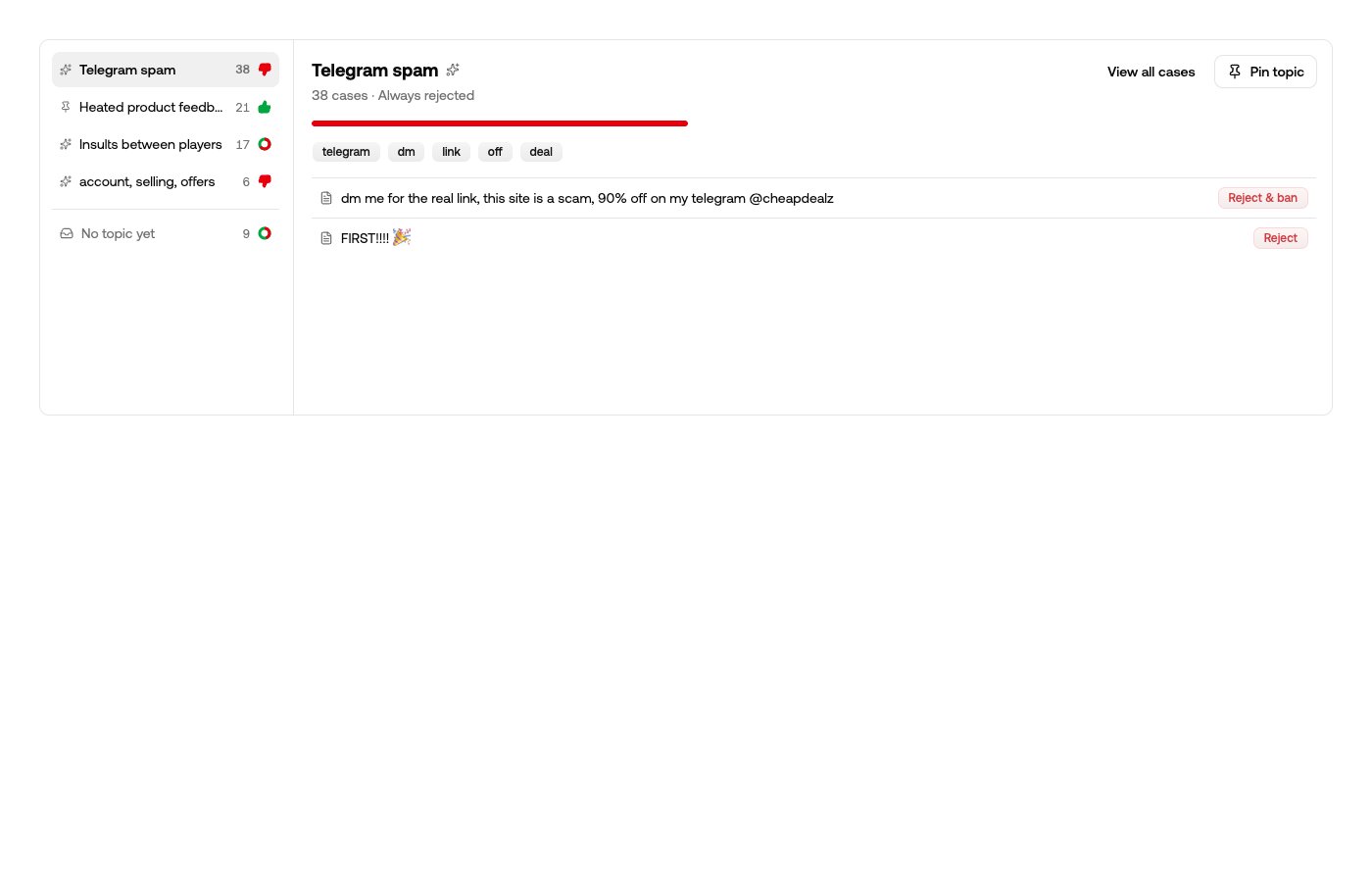
Topics are the table of contents of your casebook. As cases accumulate, they’re grouped into plainly named themes — “Telegram spam”, “Insults between players”, “Heated product feedback” — so you can see what kinds of content your team is ruling on, and how.
The topics browser: a topic tree on the left, and the selected topic's cases, keywords, and ruling tendency on the right
Each topic shows its case count, its ruling tendency — Always rejected, Always allowed, or a split like 42% rejected — its keywords, and recent cases. View all cases filters the ledger below to the topic. A split tendency isn’t a defect — it’s often the insight. A team that rejects cannabis sales while allowing other sales will see exactly that split, and can dive into the topic to check the boundary is where they want it. The last row is always No topic yet: cases still being committed to memory, waiting for the next organizing pass, or one-offs too unlike anything else to file.

Young casebooks reorganize, grown ones settle

Topics appear on their own after about ten cases, and the page tells you which of two phases you’re in:
  • While the casebook is small, every organizing pass re-reads the whole of it and re-authors the topics. Yesterday’s names aren’t binding — a topic that was really just the first week’s traffic gets renamed or dropped as the picture fills in.
  • As it grows, topics stop moving and passes only add new ones, so the vocabulary your team has been reading for weeks stays put.
Organizing runs in the background — the footer shows when the last pass ran, and Reorganize now asks for a fresh one.

Pinning

Pinning a topic is how you say “keep this”. A pinned topic keeps its name and survives every organizing pass; new cases can still be filed into it. You can also Rename topic — renaming or pinning tells automation to leave the topic alone. Writing a rule about a topic pins it automatically, so nothing your rules depend on can be reshaped underneath you.

Rules that act on a topic

Any content rule can be scoped to a casebook topic — if the content matches this topic, then take this action. That lets you act on a whole kind of content before enough precedent has accumulated for the casebook to settle it case by case: send a borderline topic to review, or reject a scam topic outright.

The weekly digest

When your casebook identifies a new topic, you get a weekly summary email. Nothing is sent in a week with no new topics, and you can turn it off in your notification settings under New casebook topics.