

recommendation.action returned by the API.
They give you one place to express the moderation logic for a channel.
Where to find it
Open your project, pick a channel, and go to Rules. You’ll see your rules listed in evaluation order, with the Severity score triage fallback at the bottom.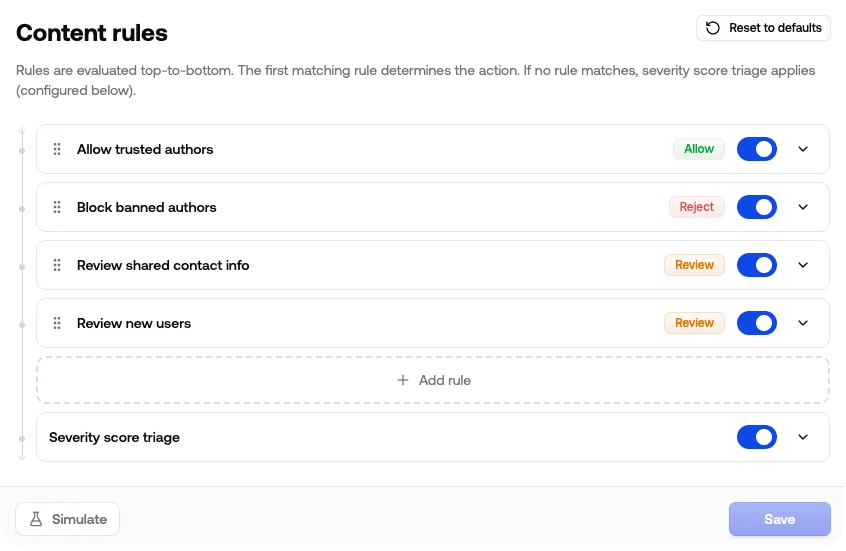
Rules you start with
Every new channel is created with two author rules already enabled:
Both are ordinary rules — edit, reorder, disable, or delete them like any other. Everything below them falls through to severity score triage until you add more.
Note the order: because the first match wins, Allow trusted authors takes precedence over Block banned authors. If you manually promote authors to
Trusted, blocking one of them won’t reject their content until you either move the block rule to the top or clear the trust level override.
Rules decide the recommendation, not whether content is analyzed. Every
request runs through the channel’s policies first, so a matching Allow rule
still returns the full policy scores and
flagged still reflects what the
analysis found. What changes is recommendation.action.Common use cases
Auto-approve established users
Returnallow for authors who’ve earned a track record on your platform, without waiting on the severity thresholds.
- If Trust Level is at least
Regular - Then Allow
Regular is reached automatically — 90+ days on your platform, 50+ clean items, and a violation rate at or below your threshold — so this covers the authors who proved themselves through their own behavior. Use Member to extend it to newer accounts, and see trust levels for what each tier requires.
The rule shipped with each channel is stricter, matching only Trusted. Lowering it to Regular is the usual first adjustment once you trust the automatic tiers. Trusted is manual-only, so leave the threshold there if you want the rule to apply to nobody but the authors you promote by hand.
Block banned users immediately
Reject anything from authors you’ve already disabled.- If Status is not
Enabled - Then Reject
Always reject the worst categories
If a category is zero-tolerance for your platform, send it straight to reject regardless of the severity score.- If Illicit is
Flagged - Then Reject
Catch risky links from new accounts
Spam and phishing often arrive as a fresh account dropping a link. Combining trust level with URL Risk lets you hold suspect new accounts without slowing down established users.- If Trust Level is at most
New - And URL Risk is
Flagged - Then Review
Tighten moderation for new accounts
Trigger review when a new account hits any flag, even if the severity score wouldn’t normally cross your threshold.- If Trust Level is at most
New - And Any Policy Flagged is
true - Then Review
Route by language
Send anything you can’t review in-house to a separate action.- If Language is not
English - Then Review
How rules work
Conditions
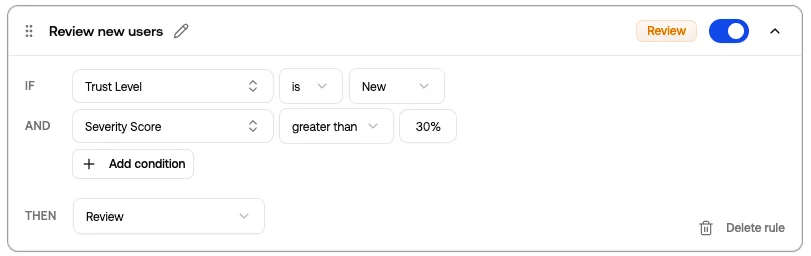
Each rule has one or more conditions. Conditions inside a rule are joined with AND: every condition must be true for the rule to match. A condition has three parts:- Field: the signal you’re matching on (Trust Level, Toxicity Score, Sentiment, …)
- Operator: how to compare it (
is,is not,at least,is one of, …) - Value: what you’re comparing it to
Available signals
Policy fields appear automatically based on which policies are enabled in the channel. If you disable a policy that a rule still references, the rule is highlighted so you can update or remove it.
Order matters
Rules run top-to-bottom and the first rule that matches wins. Drag rules by the handle on the left to reorder. A typical ordering:- Reject rules for blocked users, so nothing below can approve them
- Allow rules for trusted users, to short-circuit the rest of the list
- Reject rules for zero-tolerance categories
- Review rules for borderline cases
- Severity score triage fallback at the bottom
Actions
Each rule resolves to one of three actions, returned asrecommendation.action:
Severity score fallback
If no rule matches, the channel falls back to Severity score triage. This is a built-in step at the bottom of the list that assigns Allow, Review, or Reject based on the severity score thresholds set just below the rules. Click the row to see the current zones. You can disable triage if you’d rather have non-matching content default to Allow without any severity check. See Thresholds for how to tune the cutoffs and use the calibration helper.Casebook lookup
Channels also carry a Casebook lookup row in the cascade — it applies the ruling your team gave to similar past content, and abstains when precedent is weak or conflicting. It’s draggable and has its own switch like any rule; by default it runs just above the severity fallback. See Casebook.Simulate before saving
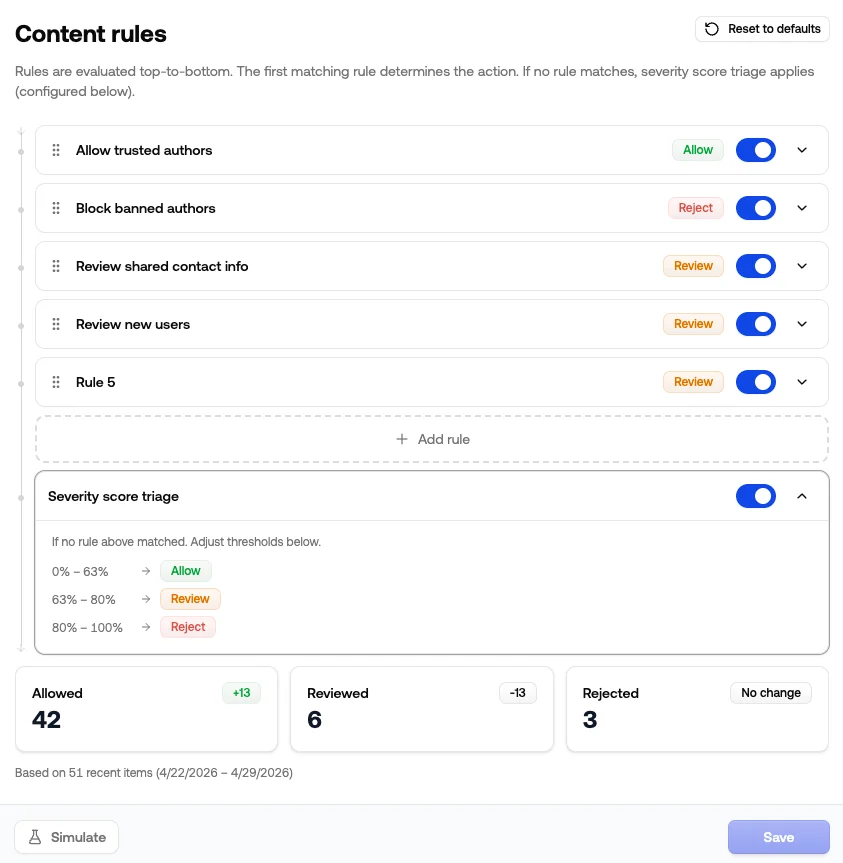
Click Simulate to run your draft rules against recent moderation history for this channel. The result shows how the action mix shifts:- How many recent items would now be Allowed, Reviewed, or Rejected
- The delta versus what actually happened
- The sample size and time range used
What you see in the API response
When a rule matches, the moderation response reflects it:
Read more about acting on the response in Understanding API responses.
If you submit a
clientAction with a request — your own recommendation from a blocklist or external tool — it’s applied after your rules and the severity fallback. Depending on its behavior, it can escalate or override the action they produced.Tips
- Start broad and tighten over time. The two default author rules plus the severity fallback get most channels 80% of the way there. Add narrower rules as you spot patterns in the queue.
- Don’t be afraid to lean on severity score triage. It does a good job out of the box: blocking the obvious stuff, sending borderline items to review, and letting clean content through. Rules are best for the cases triage can’t express on its own (author trust, specific categories, language routing).
- Give rules a real name. They show up in dashboards and audit logs, so “Reject high toxicity” is more useful than “Rule 4”. The pencil icon on an expanded rule lets you rename it.
- Run Simulate after every change. A condition that looks safe on paper can quietly shift hundreds of items between Review and Reject, and Simulate is the fastest way to spot it.
- Toggle off instead of deleting. When you’re not sure if a rule is still pulling its weight, disable it. You keep the configuration around and can flip it back on if the data says otherwise.