

- Per-policy thresholds decide what counts as flagged for each policy.
- Severity score triage decides what action to take when content is flagged and no content rule matches.
Severity score triage
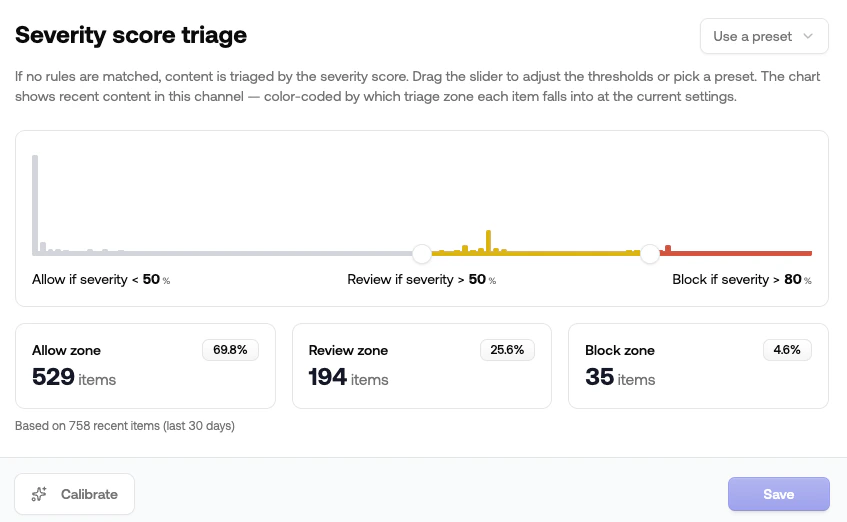
When a moderation request doesn’t match any content rule, the channel falls back to severity score triage. Triage takes the request’sseverity_score (a 0–1 number summarizing how problematic the content is) and assigns Allow, Review, or Reject based on two thresholds.
Where to find it
Open your project, go to Rules, and scroll to Severity score triage. If the project has more than one channel, pick the channel from the switcher at the top of the page.The two thresholds
Anything between the two is sent to review.
The card shows a histogram of recent severity scores in this channel, color-coded by which zone each item falls into at the current settings. You can see how a slider change would shift your review queue load and reject rate before you save.
Presets
Use the preset dropdown for a starting point:Disable triage
Toggle the switch on the Severity score triage row in the rules list to turn the fallback off completely. With triage disabled, anything that doesn’t match a rule is allowed. This is useful when:- You’ve moved all your decision logic into content rules and want a single source of truth.
- You’re observing the system in shadow mode and want every request to pass through unless a rule says otherwise.
Calibration helper
The Calibrate button on the severity triage card pulls items your team has already resolved in the review queue and recommends thresholds that maximize agreement between your pipeline and your moderators’ decisions. The flow is:- Pull a sample of resolved items (allowed and rejected) from the queue.
- Compare the severity scores of allowed vs. rejected items to find the natural review zone.
- Preview the suggested thresholds against your data before applying.
Per-policy thresholds
Each classifier policy returns aprobability between 0 and 1 for every request. The detection threshold is the cutoff at which that probability flips the policy’s flagged flag from false to true.
A flagged policy contributes to the overall severity score, can be referenced directly in content rules (e.g. Toxicity is Flagged), and surfaces in the review queue.
Where to find it
Open your project, go to Policies, pick the category (Toxicity, NSFW, Illicit, …), expand the policy, and select the Threshold tab. If the project has more than one channel, pick the channel from the switcher at the top of the page.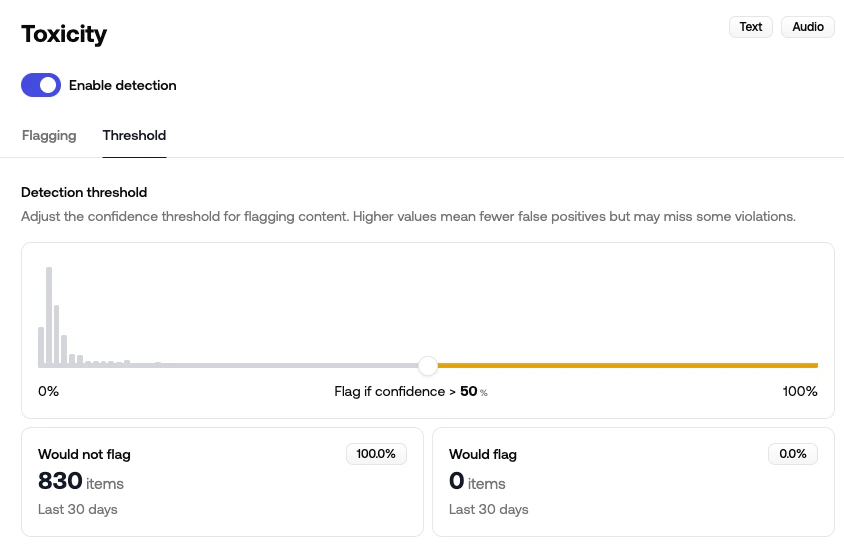
How to tune it
The slider shows a histogram of recent confidence scores for that policy. As you move the slider:- Bars to the left of the slider are below threshold → not flagged
- Bars to the right are at or above threshold → flagged
- Lower the threshold if you’re seeing false negatives: content you’d want flagged is slipping through.
- Raise the threshold if you’re seeing false positives: borderline content is being flagged unnecessarily.
Flag vs. shadow flag
Each policy also has a Flagging tab with two options: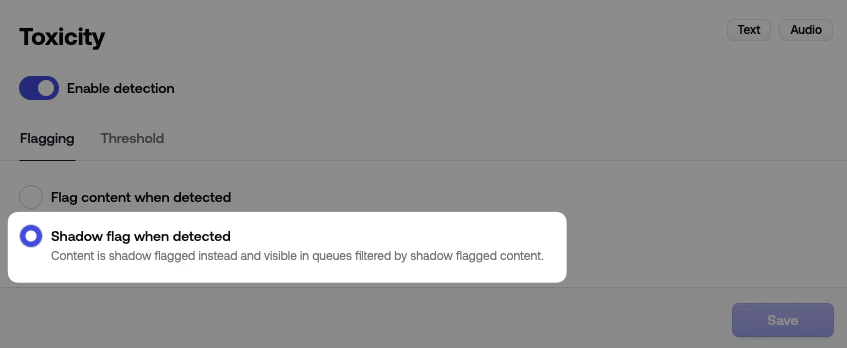
How the two layers interact
For a single moderation request, here’s the order things happen in:1
Each policy scores the content
Every enabled policy returns a
probability. Per-policy thresholds decide which policies set flagged: true.2
Severity score is computed
Policies that scored contribute to the overall
severity_score. The more
severe the violation, the higher the score.3
Content rules are evaluated
Your rules run top-to-bottom. The first match
decides the recommended action.
4
Severity triage is the fallback
If no rule matches, the severity score triage thresholds decide the action: Allow, Review, or Reject.
Tips
- Change one dial at a time. If you raise a policy threshold and lower the review cutoff in the same save, you won’t know which one moved the queue.
- Watch the histogram, not just the numbers. A 5-point slider move can shift hundreds of items between zones if your traffic clusters around that score.
- Hold off on Calibrate until you have a meaningful sample. A handful of resolved items isn’t enough to tune from, so let the queue accumulate first.
- Pair shadow flagging with Simulate. Shadow flagging previews how a policy would score real traffic; Simulate previews how the rules would route it. Neither touches what your users see.