> ## Documentation Index
> Fetch the complete documentation index at: https://docs.moderationapi.com/llms.txt
> Use this file to discover all available pages before exploring further.
# Handling User-Flagged Content
> Learn how to handle user-flagged content with the Moderation API
## Introduction
In this guide, we'll demonstrate how to enable users to report other profiles within a fictional dating application named **Wizard Dating**.
### **Goals**
* **View an overview of reported profiles**
* **Allow users to report profiles**
* **Review and remove reported profiles from the application**
* **Sort reported profiles to prioritize the most problematic ones**
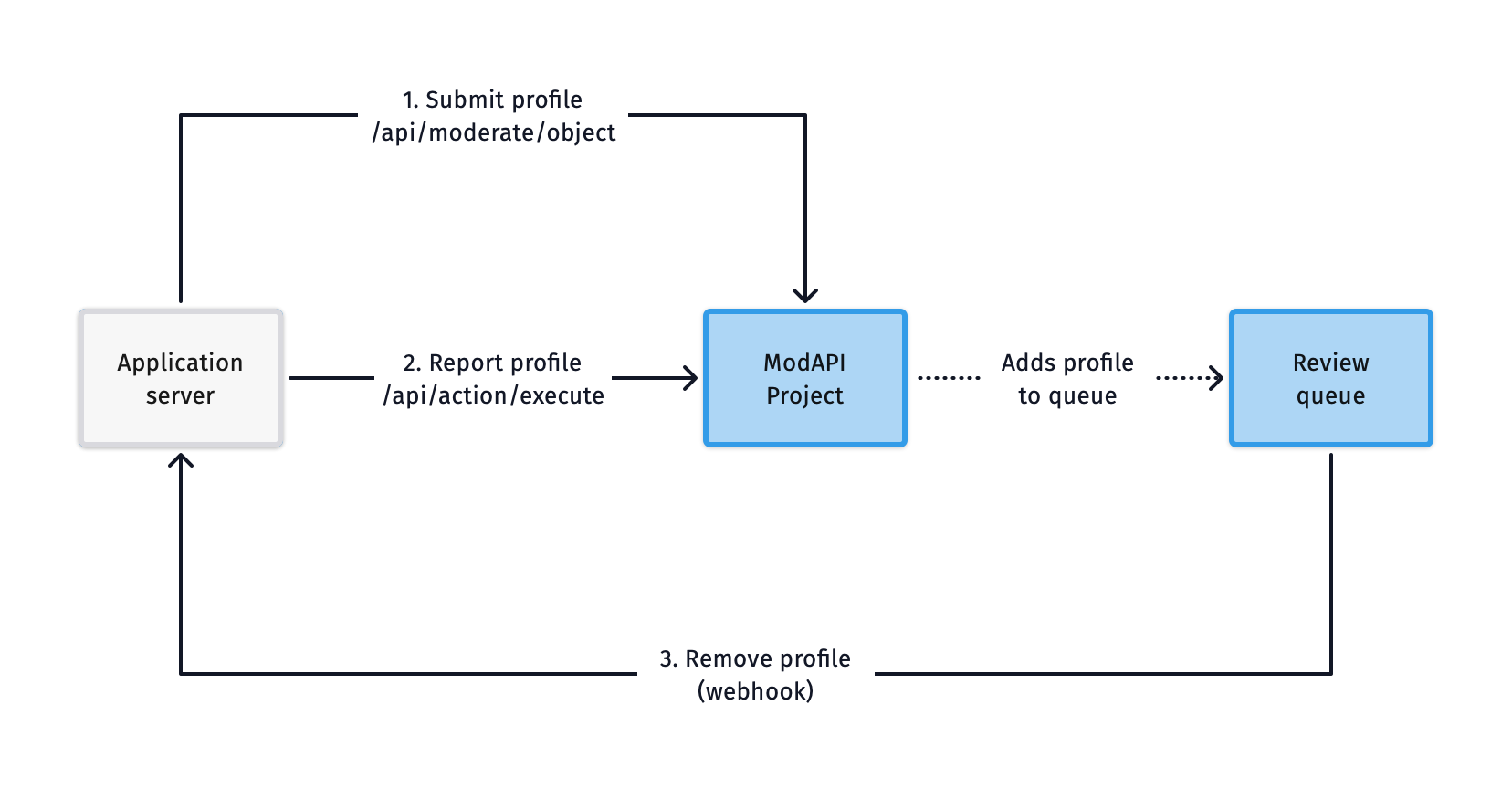
When users report a profile, we'll add it to a review queue so that an admin can assess it. If the admin decides to remove the profile, we'll eliminate it from our application.
***
## Setting Up the Dashboard
First, let's set up the dashboard by creating the necessary components. We'll need to create:
1. A project for analyzing profiles
2. An action for users to report profiles
3. A review queue to display reported profiles
4. An action for moderators to remove profiles
### Create a Project
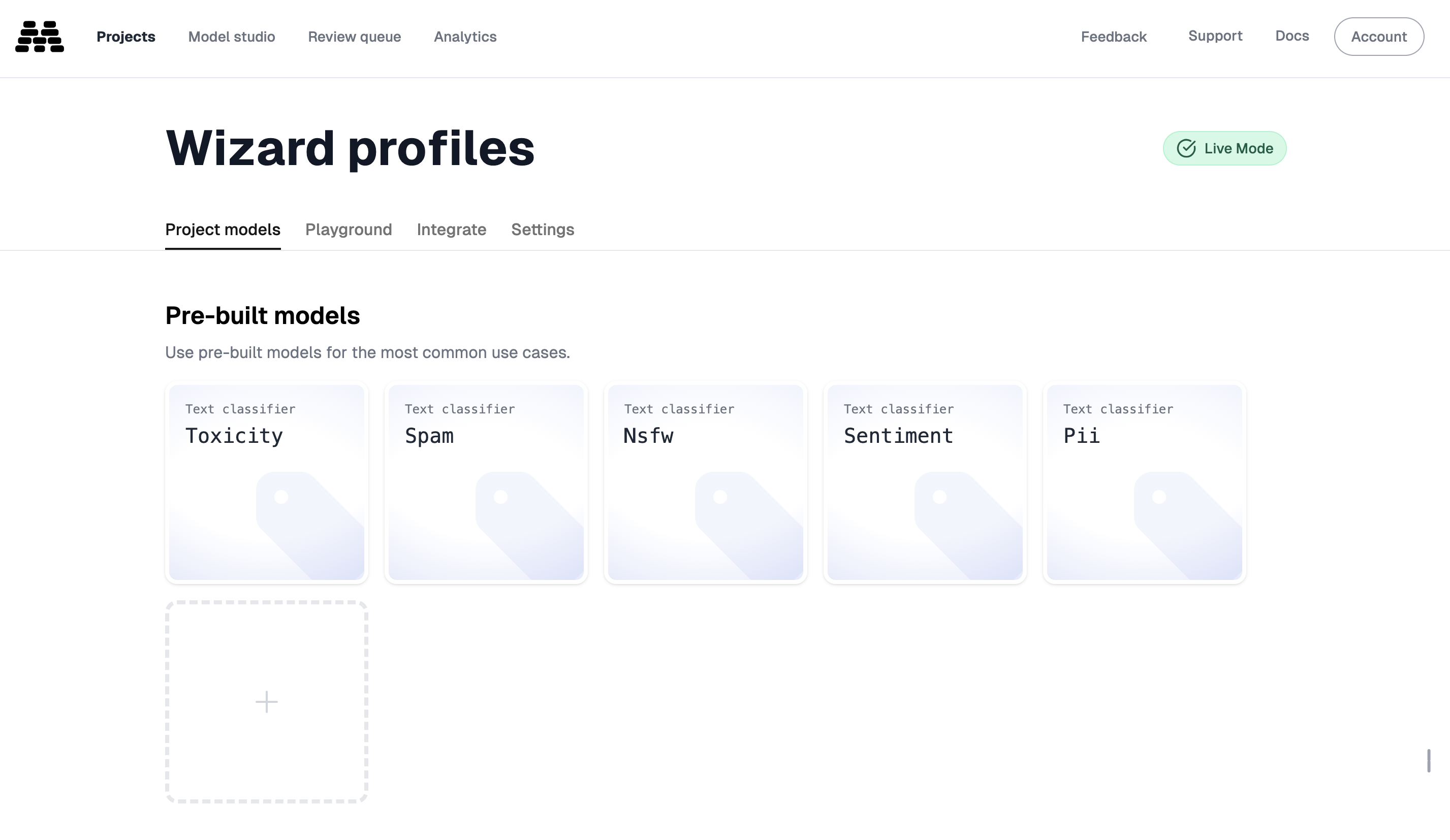
We'll start by creating a new project called *Wizard Profiles* and adding several models to it: `toxicity`, `nsfw`, `sentiment`, `pii`, and `spam`.
We will keep the flagging thresholds at their default values for now.
### Create a Reporting Action
Navigate to [your actions](https://dash.moderationapi.com/moderation/actions) to create a new action.
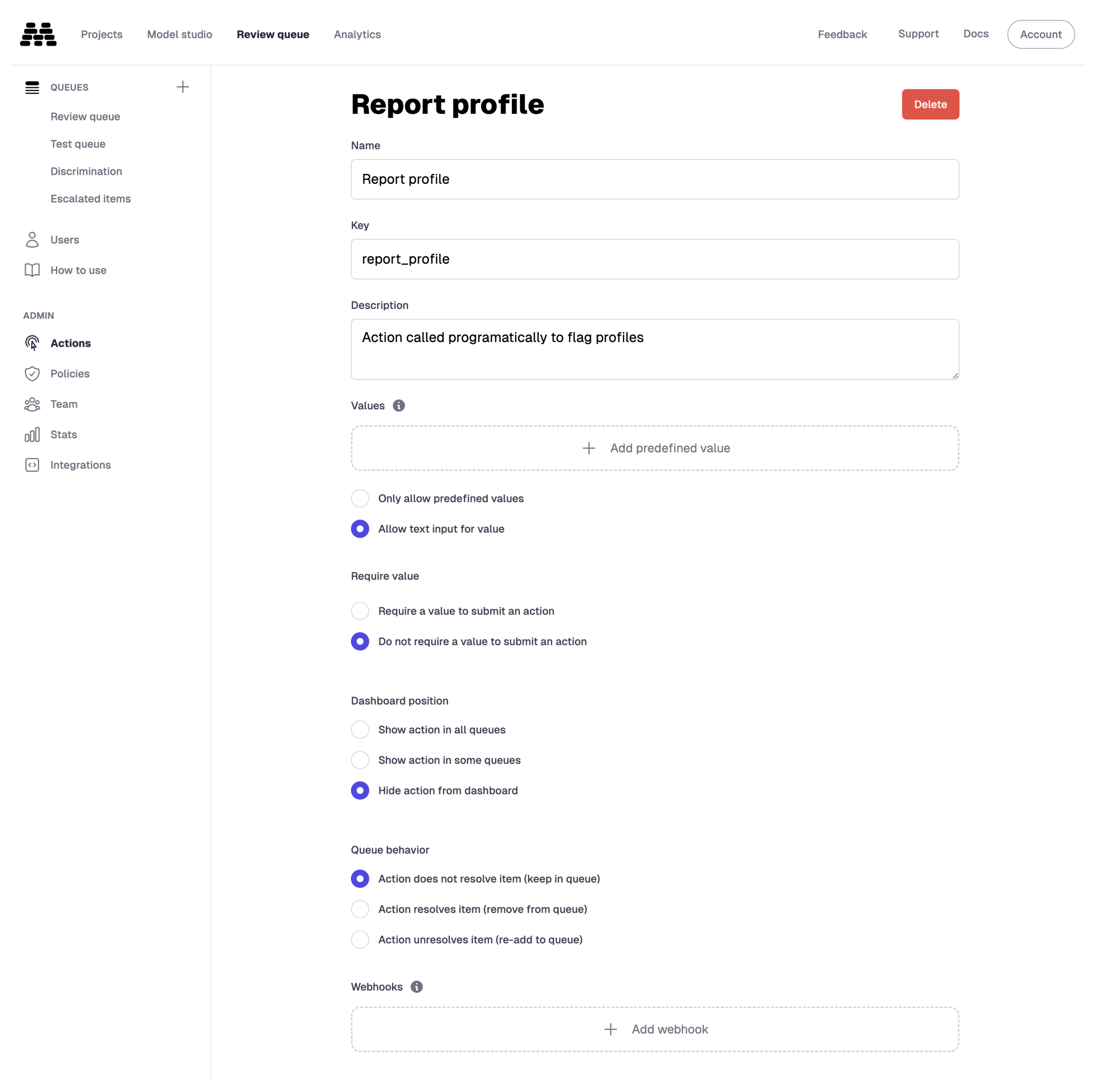
1. Create an action named `Report Profile` that will be used to report user profiles.
2. Since this action will only be invoked by our application code, select **"Hide action from dashboard"** to prevent it from appearing in any queues.
3. Additionally, check **"Allow text input for value"** so users can add comments to their reports.
4. Note the action key `report_profile` for later use.
5. Select queue behavior: **"Action unresolves item (re-add to queue)"**: to always re-add the profile to the queue even if a moderator has resolved it before. Otherwise leave it at **"Action does not resolve item"** to only review the profile once.
### Create a Review Queue
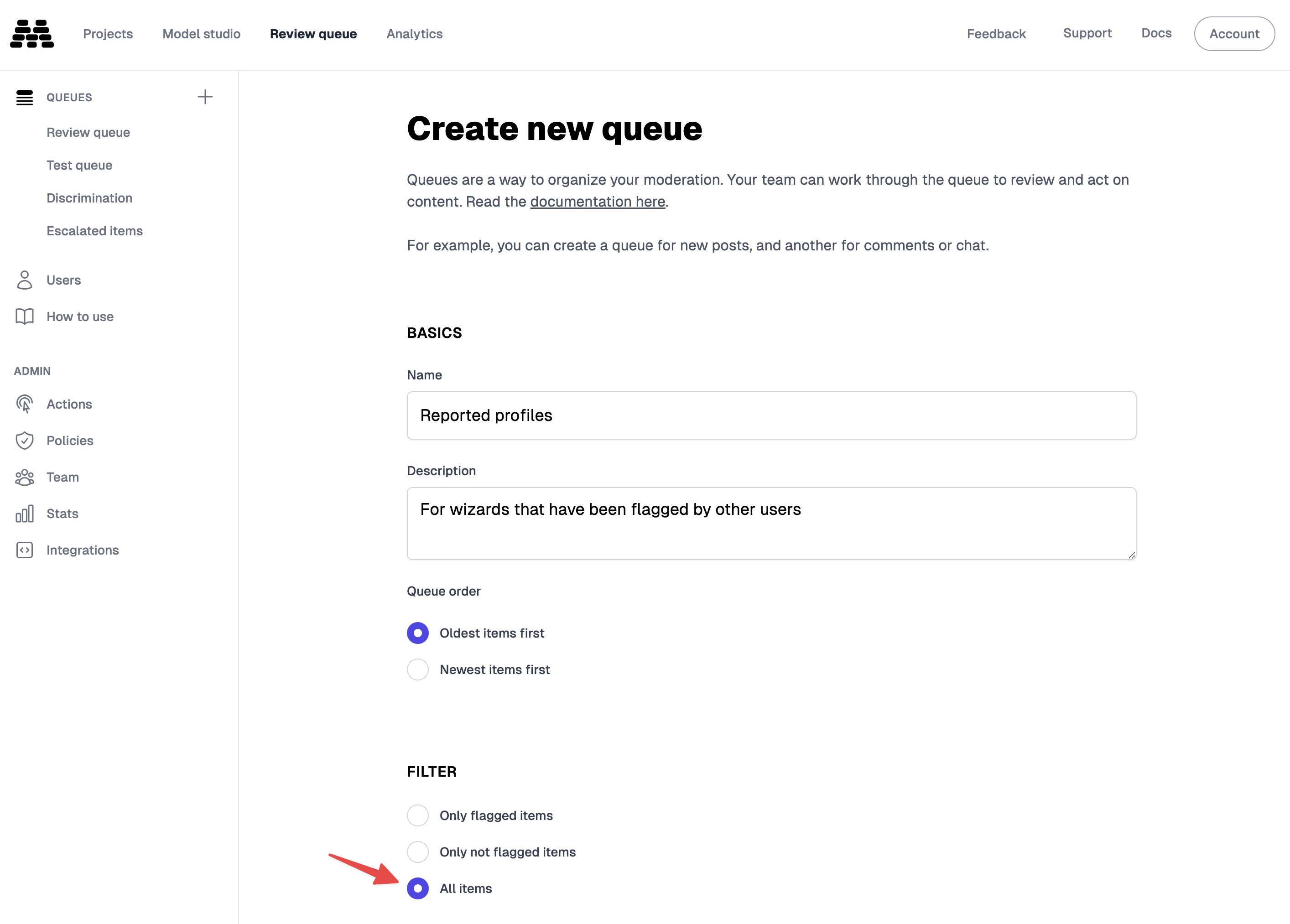
Next, we'll create a queue to review content submitted to our project. We'll name it *Reported Profiles*.
Configure the queue to display **all items** instead of just **flagged** items. This ensures that we can see all reported profiles, even if they haven't been flagged by our models.
To ensure that only reported profiles appear in this queue:
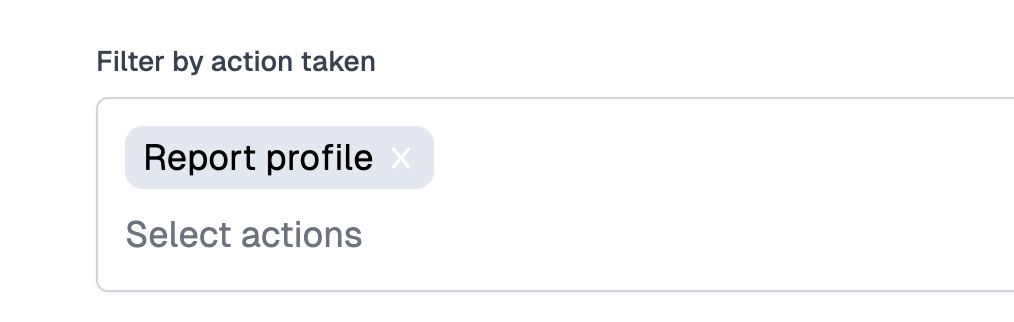
1. Set a filter for the action `Report Profile` that we created earlier.
2. Configure the queue to display items from the last month to maintain focus.
### Create a Removal Action
Now that the review queue is set up to display reported profiles, we'll add an action to remove profiles from our application.
1. Create an action named `Remove Profile`.
2. Configure it to appear only in the newly created *Reported Profiles* queue.
3. Enable **"Action resolves items"** so that the profile is removed from the queue once the action is executed.
4. Set up a webhook to call our application servers at `https://wizard-dating.com/webhooks` to handle the removal of the profile from the application.
***
## Application Code
Next, we'll implement the necessary code in our application to handle user reports and profile removals.
We'll use the Moderation API's [Node SDK](https://www.npmjs.com/package/@moderation-api/sdk) to interact with the API from our application.
### Prerequisites
#### Environment Variables
Create a `.env` file in your project root with your project API key:
```bash theme={"theme":"nord"}
MODERATION_API_KEY=your_project_api_key
```
#### Dependencies
Install the Moderation API's Node SDK using your preferred package manager:
```bash npm theme={"theme":"nord"}
npm install @moderation-api/sdk
```
```bash yarn theme={"theme":"nord"}
yarn add @moderation-api/sdk
```
```bash pnpm theme={"theme":"nord"}
pnpm add @moderation-api/sdk
```
### Instantiating the SDK
To use the Moderation API in our application, we'll need to instantiate it with our project's API key.
```typescript /lib/moderation.ts theme={"theme":"nord"}
import ModerationAPI from "@moderation-api/sdk";
// Use environment variable MODAPI_SECRET_KEY
export const moderationApi = new ModerationAPI();
// Or pass key explicitly
// export const moderationApi = new ModerationAPI({
// secretKey: process.env.MODERATION_API_KEY,
// });
```
### Submitting Profiles for Analysis
When a user creates or updates a profile, we'll submit it for analysis using the `/moderate` endpoint. This allows us to detect any issues with the profile content.
```typescript Create Profile theme={"theme":"nord"}
import { moderationApi } from "./lib/moderation";
import db from "./lib/db";
export const handleCreateProfile = async ({ bio, profilePicture }) => {
const profile = await db.profile.create({
data: {
bio,
profilePicture,
},
});
const result = await moderationApi.content.submit({
content: {
type: "object",
data: {
bio: {
type: "text",
text: bio,
},
profilePicture: {
type: "image",
url: profilePicture,
},
},
},
contentId: profile.id,
authorId: profile.id,
// Optional: Add the URL to quickly view the profile from the queue
metadata: {
url: profile.url,
},
});
// Check if profile was flagged
if (result.evaluation.flagged) {
// Handle flagged profile (e.g., require review)
}
return profile;
};
```
```typescript Update Profile theme={"theme":"nord"}
import { moderationApi } from "./lib/moderation";
import db from "./lib/db";
export const handleUpdateProfile = async ({ id, bio, profilePicture }) => {
const profile = await db.profile.update({
where: { id },
data: { bio, profilePicture },
});
const result = await moderationApi.content.submit({
content: {
type: "object",
data: {
bio: {
type: "text",
text: bio,
},
profilePicture: {
type: "image",
url: profilePicture,
},
},
},
contentId: id,
authorId: id,
// Optional: Add the URL to quickly view the profile from the queue
metadata: {
url: profile.url,
},
});
// Check if profile was flagged
if (result.evaluation.flagged) {
// Handle flagged profile (e.g., require review)
}
return profile;
};
```
*In this example, we are not acting on the analysis results, but you could use the data to hide flagged profiles or return an error to the user.*
### Adding Report Functionality to Our Application
We'll add a function to call the `/actions/execute` endpoint to report a profile. This function should be exposed to users through your application's UI.
```typescript Handle Report Profile theme={"theme":"nord"}
import { moderationApi } from "./lib/moderation";
export const handleReportProfile = async (profile, reason) => {
const actionKey = "report_profile";
const { success } = await moderationApi.queueActions.execute(actionKey, {
contentIds: [profile.id],
value: reason,
// Optional: Find the queue ID in the URL of the queue's detail view. Add this if you always want to re-add the profile to the queue even if a moderator has resolved it before.
queueId: "6776a700c62f7bc4e7ba57bb",
});
return success;
};
```
### Handling the Webhook
We'll implement a webhook handler to process the `Remove Profile` action. The handler verifies the `modapi-signature` header, then dispatches on the event `type`.
```javascript /pages/api/webhooks.js theme={"theme":"nord"}
import crypto from "crypto";
import { buffer } from "micro";
import db from "../../lib/db";
const handler = async (req, res) => {
const rawBody = (await buffer(req)).toString("utf8");
const signatureHeader = req.headers["modapi-signature"];
// Verify the signature with HMAC-SHA256
const expected = crypto
.createHmac("sha256", process.env.MODAPI_WEBHOOK_SECRET)
.update(rawBody)
.digest("hex");
const sig = Buffer.from(signatureHeader || "", "utf8");
const dig = Buffer.from(expected, "utf8");
if (sig.length !== dig.length || !crypto.timingSafeEqual(sig, dig)) {
return res.status(401).send();
}
const event = JSON.parse(rawBody);
// `queue_item.action` fires for custom actions on a queue item.
// The action lives at the root of `data.object`; the item is nested.
if (
event.type === "queue_item.action" &&
event.data.object.key === "remove_profile"
) {
const { item } = event.data.object;
// Remove the user from our application
await db.user.update({
where: { userId: item.id },
data: { banned: true },
});
}
return res.status(200).send();
};
// Disable body parser to access raw body
export const config = {
api: {
bodyParser: false,
},
};
export default handler;
```
For more information, refer to the [webhook documentation](/actions/webhooks).
***
## Using Our Review Queue
With everything set up, we can start using our review queue to manage reported profiles.
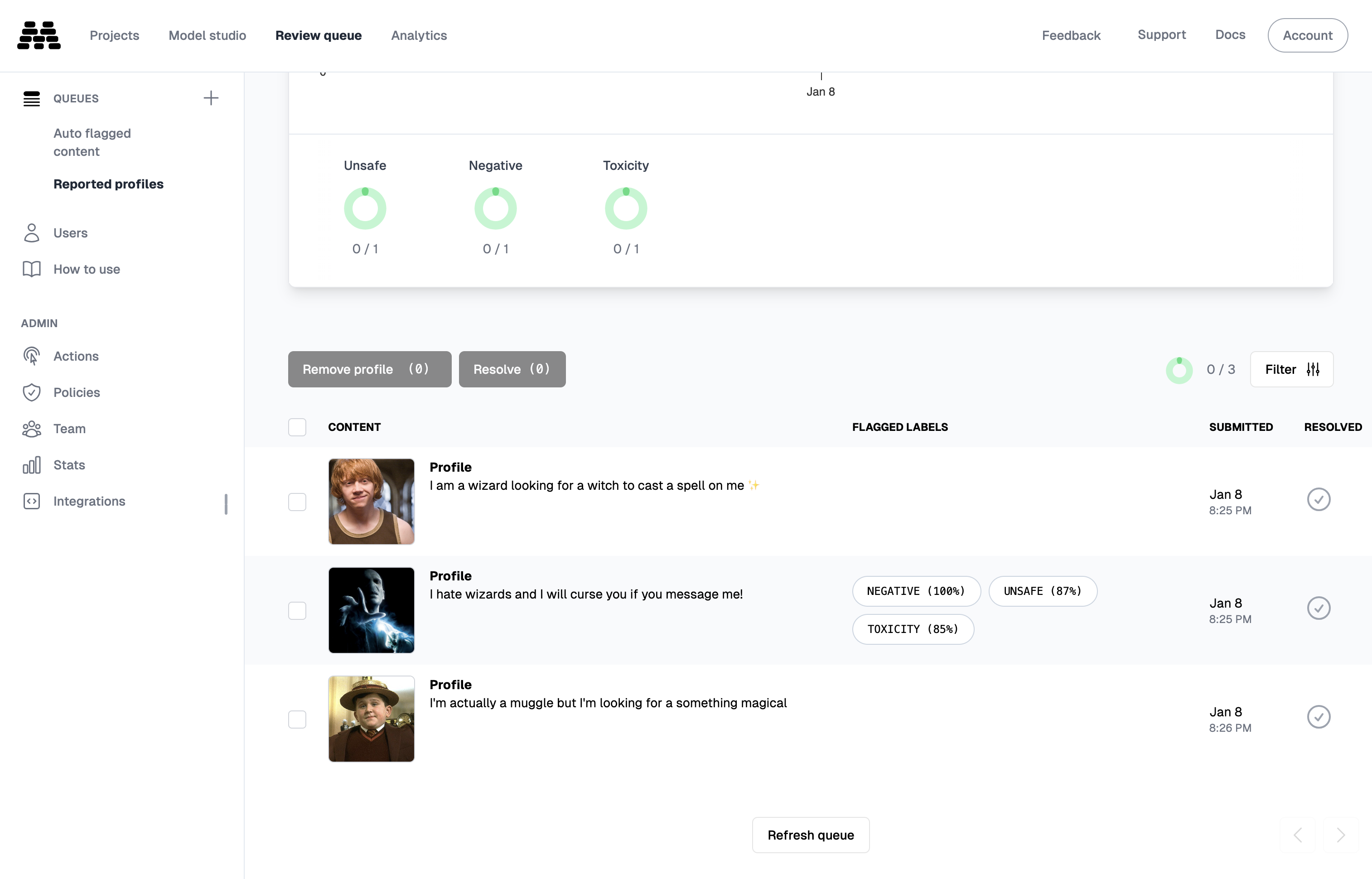
Upon opening the review queue, we'll see reports submitted by users on our Wizard Dating app. We'll review each report to decide whether to remove the profile or keep it.
### Focusing on the Worst Offenders
To prioritize profiles that have also been flagged by our model analysis, we can apply a queue filter.
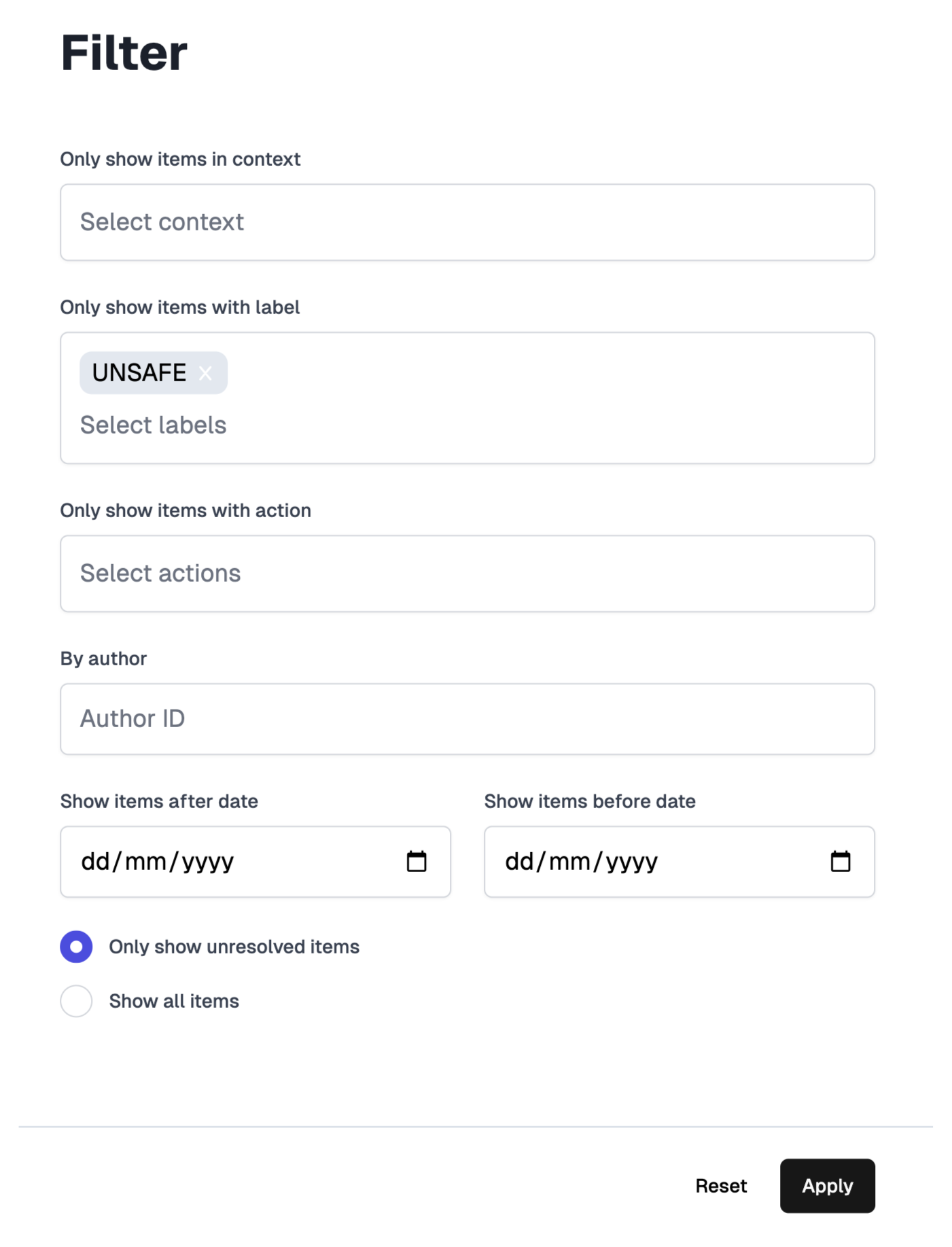
1. Open the filter and select the labels you want to focus on, such as `UNSAFE`.
> **Tip:** You can also click on the labels in the chart to apply the filter.
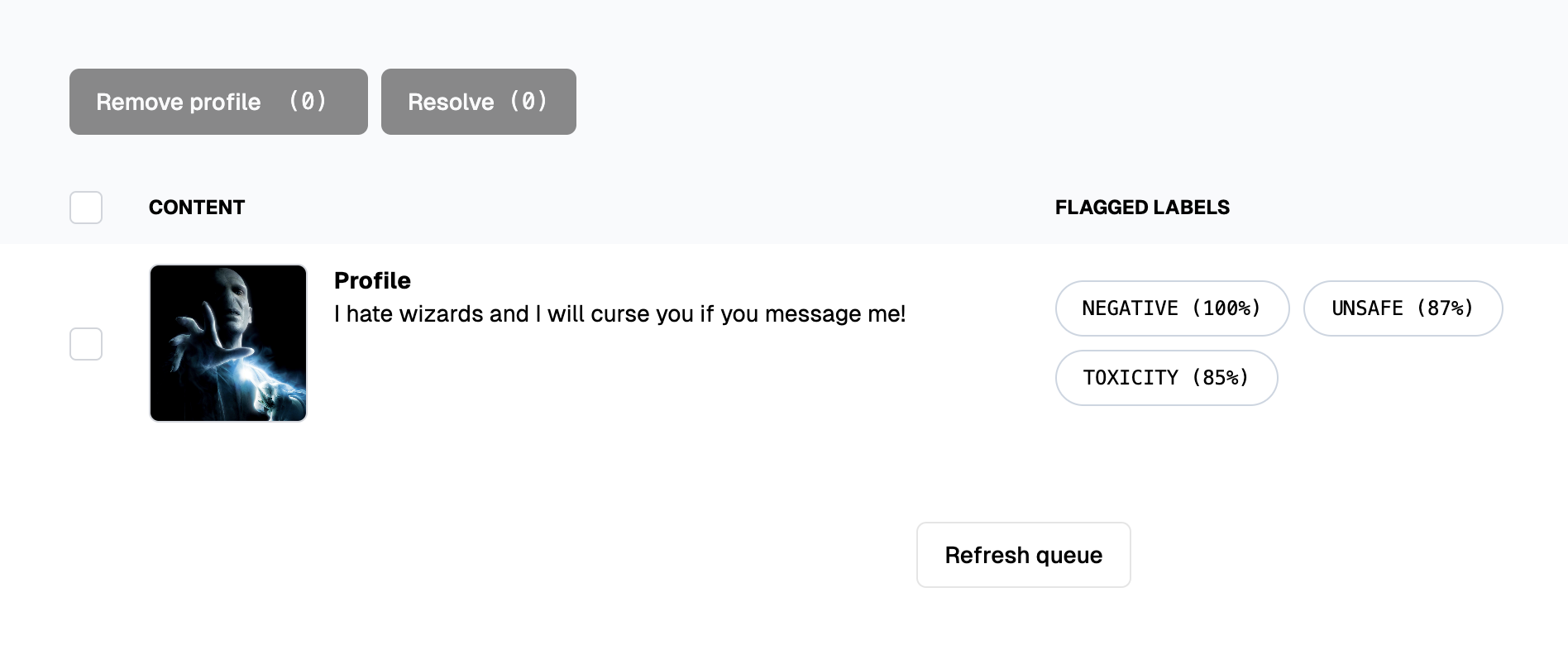
2. After setting the filter, you'll see items labeled as `UNSAFE`.
### Removing a Profile
1. Click on a queue item to open its detail view, where you can see the profile content and metadata.
2. Review the flags and activity history, including when the profile was submitted, reported, and the reasons provided by users.
3. If the profile violates guidelines, click the **"Remove Profile"** action. This will trigger the webhook to remove the profile from the application and resolve the item in the queue.
### Keeping a Profile
1. Reset the filter to view all remaining items in the queue.
2. Select a profile that has been reported but not flagged by the models.
> **Example:** *"I'm actually a muggle but I'm looking for something magical."*
3. If the profile appears appropriate, click the **"Resolve"** button to remove it from the queue without taking further action.
4. Repeat the process for other profiles as needed.
***
## All Done!
The review queue is now empty, and we've successfully handled all reported profiles.
### Accomplishments:
* **Enabled users to report profiles**
* **Set up a review queue to manage reports**
* **Implemented a webhook to remove profiles from the application**
## Next Steps
* **Invite moderators to your queue:** Expand your moderation team to handle more reports efficiently.
* **Use the data to train a model:** Enhance your models to better recognize inappropriate profiles.
* **Implement an automated policy:** Automatically remove profiles that receive multiple flags to streamline moderation.
 ***
## Setting Up the Dashboard
First, let's set up the dashboard by creating the necessary components. We'll need to create:
1. A project for analyzing profiles
2. An action for users to report profiles
3. A review queue to display reported profiles
4. An action for moderators to remove profiles
### Create a Project
We'll start by creating a new project called *Wizard Profiles* and adding several models to it: `toxicity`, `nsfw`, `sentiment`, `pii`, and `spam`.
We will keep the flagging thresholds at their default values for now.
***
## Setting Up the Dashboard
First, let's set up the dashboard by creating the necessary components. We'll need to create:
1. A project for analyzing profiles
2. An action for users to report profiles
3. A review queue to display reported profiles
4. An action for moderators to remove profiles
### Create a Project
We'll start by creating a new project called *Wizard Profiles* and adding several models to it: `toxicity`, `nsfw`, `sentiment`, `pii`, and `spam`.
We will keep the flagging thresholds at their default values for now.
 ### Create a Reporting Action
Navigate to [your actions](https://dash.moderationapi.com/moderation/actions) to create a new action.
1. Create an action named `Report Profile` that will be used to report user profiles.
2. Since this action will only be invoked by our application code, select **"Hide action from dashboard"** to prevent it from appearing in any queues.
3. Additionally, check **"Allow text input for value"** so users can add comments to their reports.
4. Note the action key `report_profile` for later use.
5. Select queue behavior: **"Action unresolves item (re-add to queue)"**: to always re-add the profile to the queue even if a moderator has resolved it before. Otherwise leave it at **"Action does not resolve item"** to only review the profile once.
### Create a Reporting Action
Navigate to [your actions](https://dash.moderationapi.com/moderation/actions) to create a new action.
1. Create an action named `Report Profile` that will be used to report user profiles.
2. Since this action will only be invoked by our application code, select **"Hide action from dashboard"** to prevent it from appearing in any queues.
3. Additionally, check **"Allow text input for value"** so users can add comments to their reports.
4. Note the action key `report_profile` for later use.
5. Select queue behavior: **"Action unresolves item (re-add to queue)"**: to always re-add the profile to the queue even if a moderator has resolved it before. Otherwise leave it at **"Action does not resolve item"** to only review the profile once.
 ### Create a Review Queue
Next, we'll create a queue to review content submitted to our project. We'll name it *Reported Profiles*.
### Create a Review Queue
Next, we'll create a queue to review content submitted to our project. We'll name it *Reported Profiles*.
 Configure the queue to display **all items** instead of just **flagged** items. This ensures that we can see all reported profiles, even if they haven't been flagged by our models.
To ensure that only reported profiles appear in this queue:
1. Set a filter for the action `Report Profile` that we created earlier.
2. Configure the queue to display items from the last month to maintain focus.
Configure the queue to display **all items** instead of just **flagged** items. This ensures that we can see all reported profiles, even if they haven't been flagged by our models.
To ensure that only reported profiles appear in this queue:
1. Set a filter for the action `Report Profile` that we created earlier.
2. Configure the queue to display items from the last month to maintain focus.
 ### Create a Removal Action
Now that the review queue is set up to display reported profiles, we'll add an action to remove profiles from our application.
1. Create an action named `Remove Profile`.
2. Configure it to appear only in the newly created *Reported Profiles* queue.
3. Enable **"Action resolves items"** so that the profile is removed from the queue once the action is executed.
4. Set up a webhook to call our application servers at `https://wizard-dating.com/webhooks` to handle the removal of the profile from the application.
***
## Application Code
Next, we'll implement the necessary code in our application to handle user reports and profile removals.
We'll use the Moderation API's [Node SDK](https://www.npmjs.com/package/@moderation-api/sdk) to interact with the API from our application.
### Prerequisites
#### Environment Variables
Create a `.env` file in your project root with your project API key:
```bash theme={"theme":"nord"}
MODERATION_API_KEY=your_project_api_key
```
#### Dependencies
Install the Moderation API's Node SDK using your preferred package manager:
### Create a Removal Action
Now that the review queue is set up to display reported profiles, we'll add an action to remove profiles from our application.
1. Create an action named `Remove Profile`.
2. Configure it to appear only in the newly created *Reported Profiles* queue.
3. Enable **"Action resolves items"** so that the profile is removed from the queue once the action is executed.
4. Set up a webhook to call our application servers at `https://wizard-dating.com/webhooks` to handle the removal of the profile from the application.
***
## Application Code
Next, we'll implement the necessary code in our application to handle user reports and profile removals.
We'll use the Moderation API's [Node SDK](https://www.npmjs.com/package/@moderation-api/sdk) to interact with the API from our application.
### Prerequisites
#### Environment Variables
Create a `.env` file in your project root with your project API key:
```bash theme={"theme":"nord"}
MODERATION_API_KEY=your_project_api_key
```
#### Dependencies
Install the Moderation API's Node SDK using your preferred package manager:
 ### Focusing on the Worst Offenders
To prioritize profiles that have also been flagged by our model analysis, we can apply a queue filter.
1. Open the filter and select the labels you want to focus on, such as `UNSAFE`.
> **Tip:** You can also click on the labels in the chart to apply the filter.
### Focusing on the Worst Offenders
To prioritize profiles that have also been flagged by our model analysis, we can apply a queue filter.
1. Open the filter and select the labels you want to focus on, such as `UNSAFE`.
> **Tip:** You can also click on the labels in the chart to apply the filter.
 2. After setting the filter, you'll see items labeled as `UNSAFE`.
 ### Removing a Profile
1. Click on a queue item to open its detail view, where you can see the profile content and metadata.
### Removing a Profile
1. Click on a queue item to open its detail view, where you can see the profile content and metadata.
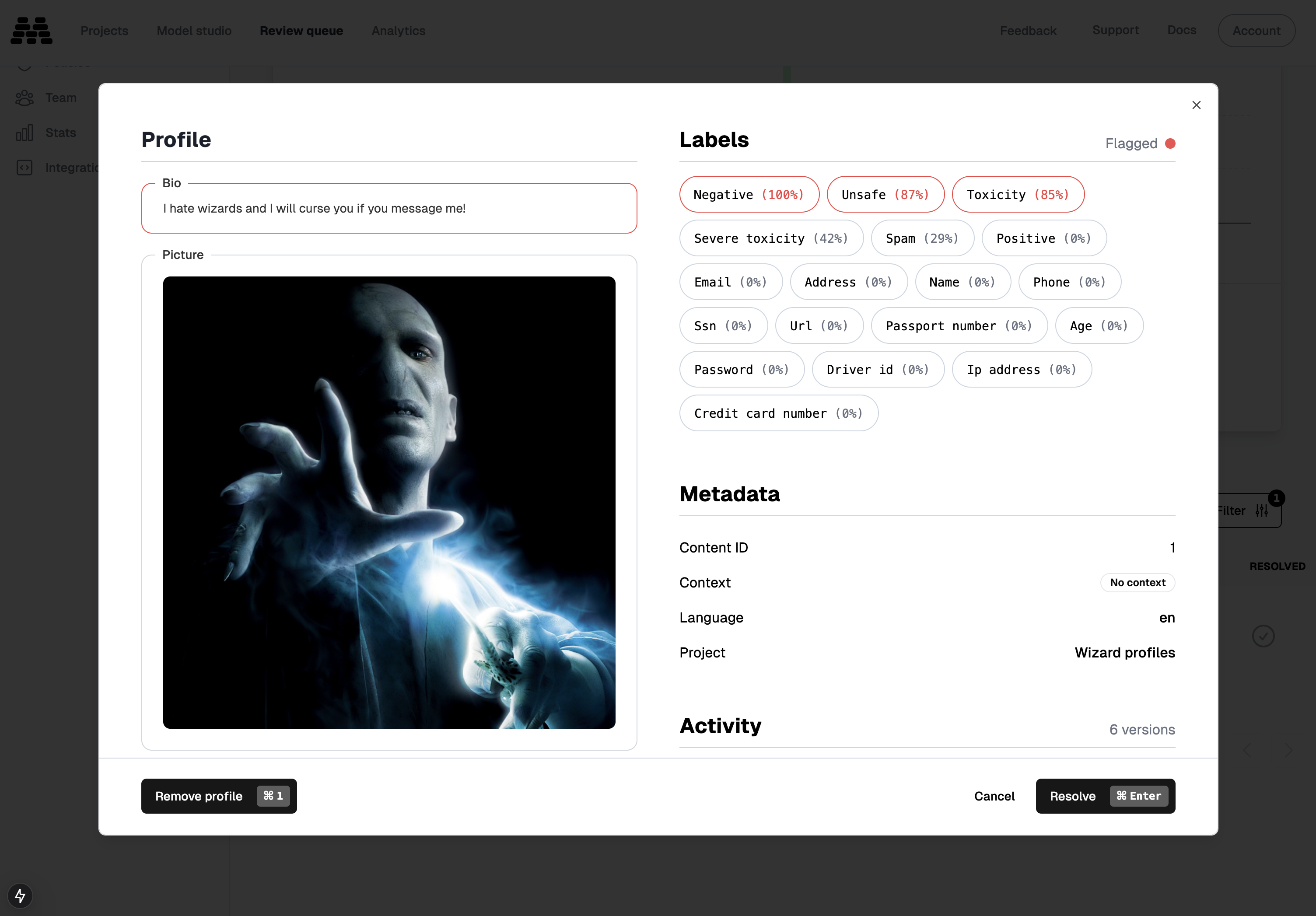 2. Review the flags and activity history, including when the profile was submitted, reported, and the reasons provided by users.
3. If the profile violates guidelines, click the **"Remove Profile"** action. This will trigger the webhook to remove the profile from the application and resolve the item in the queue.
### Keeping a Profile
1. Reset the filter to view all remaining items in the queue.
2. Select a profile that has been reported but not flagged by the models.
> **Example:** *"I'm actually a muggle but I'm looking for something magical."*
3. If the profile appears appropriate, click the **"Resolve"** button to remove it from the queue without taking further action.
4. Repeat the process for other profiles as needed.
***
## All Done!
The review queue is now empty, and we've successfully handled all reported profiles.
### Accomplishments:
* **Enabled users to report profiles**
* **Set up a review queue to manage reports**
* **Implemented a webhook to remove profiles from the application**
## Next Steps
* **Invite moderators to your queue:** Expand your moderation team to handle more reports efficiently.
* **Use the data to train a model:** Enhance your models to better recognize inappropriate profiles.
* **Implement an automated policy:** Automatically remove profiles that receive multiple flags to streamline moderation.
2. Review the flags and activity history, including when the profile was submitted, reported, and the reasons provided by users.
3. If the profile violates guidelines, click the **"Remove Profile"** action. This will trigger the webhook to remove the profile from the application and resolve the item in the queue.
### Keeping a Profile
1. Reset the filter to view all remaining items in the queue.
2. Select a profile that has been reported but not flagged by the models.
> **Example:** *"I'm actually a muggle but I'm looking for something magical."*
3. If the profile appears appropriate, click the **"Resolve"** button to remove it from the queue without taking further action.
4. Repeat the process for other profiles as needed.
***
## All Done!
The review queue is now empty, and we've successfully handled all reported profiles.
### Accomplishments:
* **Enabled users to report profiles**
* **Set up a review queue to manage reports**
* **Implemented a webhook to remove profiles from the application**
## Next Steps
* **Invite moderators to your queue:** Expand your moderation team to handle more reports efficiently.
* **Use the data to train a model:** Enhance your models to better recognize inappropriate profiles.
* **Implement an automated policy:** Automatically remove profiles that receive multiple flags to streamline moderation.